Classroom & live online 80 Hours Verifiable certificate Syllabus ↓

CorelDraw For Graphics Design Course

Learn CorelDRAW for logos, brochures, banners and print layouts with hands-on projects.

Your roadmap — from admission to certificate

  1. Free counselling

    Talk to our counsellor — choose the right course, batch time and mode.

  2. Admission

    Join at a CADD centre near you or online. You get your student login and ID card.

  3. Learn step by step

    80 Hours of hands-on CorelDraw For Graphics Design classes — in the classroom or live online.

    Getting startedCorelDRAW basicsWorking with Lines, Outlines and brushstrokesDrawing ShapesShaping ObjectWorking With ObjectsWorking with LayersUsing PowerclipsOutlining and filling objectsSpecial effeccts
  4. Practice & project

    Exercises in every class and a final project, checked by your trainer.

  5. Course completion certificate + completion badge

    Finish the course and get your course-completion certificate and a digital completion badge with your name.
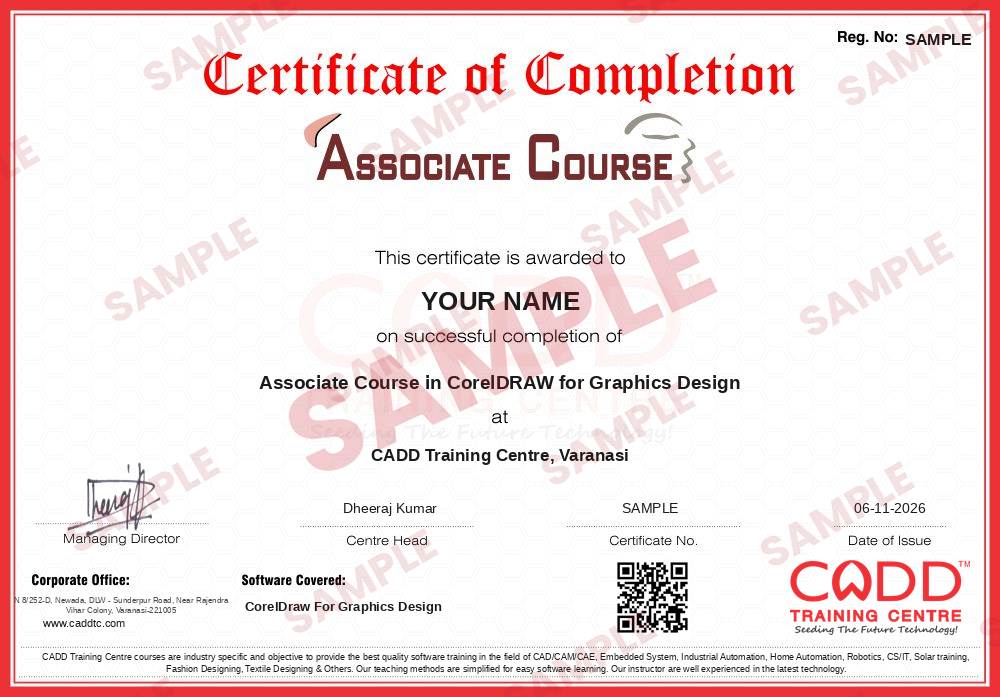
    Sample course-completion certificate — Associate Course in CorelDRAW for Graphics Design
    Course-completion certificate (sample) — Associate Course in CorelDRAW for Graphics Design · verifiable online
    Course-completion badge — Associate Course in CorelDRAW for Graphics Design
    Course-completion badge
    Course
    Associate Course in CorelDRAW for Graphics Design
    Issued by
    CADD Training Cetre
    Training
    Classroom or live online
    How to earn
    Complete the course and its project
    With your name and year · its own verify link · “Add to profile” on LinkedIn
  6. Certification exam

    Take the certification exam: a theory test and a practical task — at the centre or online.

  7. Certified certificate + marksheet

    Pass the exam and get the certified certificate with your marksheet. Anyone can check it online with its QR code.

  8. Certified badge

    Your certified badge — add it to LinkedIn and share it anywhere; it opens its own verify page.
    Certified badge — Associate Course in CorelDRAW for Graphics Design
    Certified badge
    Course
    Associate Course in CorelDRAW for Graphics Design
    Issued by
    CADD Training Cetre
    Training
    Classroom or live online
    How to earn
    Pass the certification exam
    You also get
    Certified certificate + marksheet
    With your name and year · its own verify link · “Add to profile” on LinkedIn
  9. Make your CV & apply for jobs

    Make your CV in your student panel (Career → My CV) — your course, certificates and projects are added for you. Send it as a link with a preview picture, and apply to jobs and Hire Me requests from companies.

About the CorelDraw For Graphics Design course

CorelDRAW is a vector graphics and page layout program used across the printing and advertising world. Printing presses, flex and sign shops, packaging units, advertising agencies and freelance designers use it every day to create logos, visiting cards, letterheads, flyers, hoardings, labels and wedding cards, because its artwork scales to any size without losing sharpness and goes straight to print.

This 80-hour CorelDRAW for Graphic Design course starts with the workspace, the Pick and Shape tools and node editing, then moves to the Pen, Bezier and B-Spline tools, shaping commands such as Weld, Trim and Intersect, interactive fills, transparency, PowerClip, text on a path, and effects like Blend, Contour, Envelope and Drop Shadow. You also learn PowerTRACE for converting bitmaps to vectors, CMYK colour, bleed and print-ready PDF export. Every topic is practised hands-on in class, and you build real jobs such as a logo, a brochure, a banner and a product label. Classes run in the classroom at CADD centres and as live online sessions.

The course prepares you for work as a graphic designer, DTP operator or print and packaging designer. Many students continue with Photoshop and Adobe Illustrator to round out a complete design skill set.

You will be able to

  • Draw clean vector shapes and edit nodes with the Shape, Pen, Bezier and B-Spline tools
  • Design logos, visiting cards, letterheads and brochures to a professional standard
  • Combine objects with Weld, Trim, Intersect and PowerClip to build complex artwork
  • Apply fills, gradients, transparency and effects such as Blend, Contour and Envelope
  • Convert scanned sketches and bitmaps into editable vectors with PowerTRACE
  • Set up CMYK colour, bleed and crop marks and export print-ready PDF files
  • Lay out multi-page documents with text frames, styles and master layers

Who it is for

  • Students who want to start a career in graphic design or DTP
  • Staff of printing presses, flex and sign shops who want faster, cleaner work
  • Small business owners who want to design their own marketing material
  • Freelancers and fine arts students moving from hand drawing to digital design
  • Commerce and arts graduates looking for a practical computer skill

What you need

  • Basic computer skills such as using a mouse, keyboard and folders
  • Interest in design, colour and layout; no drawing degree needed
  • For live online classes, a Windows PC with at least 8 GB RAM and a stable internet connection

Courses that include CorelDraw For Graphics Design

Associate Course in CorelDRAW for Graphics DesignAssociate Course · 80 Hours
Enquire →
Associate Course in Graphics DesignAssociate Course · 160 Hours · 2 software
Enquire →
Associate Course in Graphics DesignAssociate Course · 220 Hours · 3 software
Enquire →
CNC Router & Engraving Designer – Associate Career ProgramAssociate Career Program · 130 Hours · 3 software
Enquire →
Graphic Designer – Professional Career ProgramProfessional Career Program · 280 Hours · 4 software
Enquire →
CNC Router & Engraving Designer – Professional Career ProgramProfessional Career Program · 190 Hours, 3 Months · 5 software
Enquire →

CorelDraw For Graphics Design Syllabus

17 chapters · 169 topics
01 Getting started 4 topics
  1. Installing CorelDRAW Graphics Suite
  2. Learning Resources
  3. Starting and setting up
  4. CorelDRAW workspace bar
02 CorelDRAW basics 15 topics
  1. Understanding Vector graphics and bitmaps
  2. Starting and Opening Drawing
  3. Scanning Image
  4. Working With multiple drawing
  5. Undoing, Redoing, and Repeating actions
  6. Zooming, Panning and Scrolling
  7. Previewing drawings
  8. Choosing Viewing modes
  9. Working with views
  10. Saving drawings
  11. Working with locked files
  12. Backing up and Recovering files
  13. Adding and accessing drawing information
  14. Close drawings
  15. Exploring basic tasks
03 Working with Lines, Outlines and brushstrokes 8 topics
  1. Drawing Lines
  2. Drawing calligraphic and preset lines
  3. Formatting lines and outlines
  4. Adding arrowheads to lines and curves
  5. Copying, converting, and removing outlines
  6. Applying brushstrokes
  7. Spraying objects along a line
  8. Drawing dimension lines
04 Drawing Shapes 7 topics
  1. Drawing rectangles and squares
  2. Drawing ellipses, circles, arcs, and pie shapes
  3. Drawing polygons and stars
  4. Drawing spirals
  5. Drawing grids
  6. Drawing predefined shapes
  7. Drawing by using shape recognition
05 Shaping Object 23 topics
  1. Using curve objects
  2. Selecting and moving nodes
  3. Manipulating segments
  4. Joining curves
  5. Copying and cutting segments
  6. Adding, removing, joining, and aligning nodes
  7. Using node types
  8. Transforming nodes
  9. Breaking the path of curve objects
  10. Mirroring changes in curve objects
  11. Smudging and smearing objects
  12. Roughening objects
  13. Smoothing objects
  14. Shaping objects by attracting or pushing away nodes
  15. Adding twirl effects
  16. Shaping objects by using envelopes
  17. Cropping and erasing objects
  18. Splitting objects
  19. Trimming objects
  20. Filleting, scalloping, and chamfering corners
  21. Welding and intersecting objects
  22. Creating PowerClip objects
  23. Setting options for nodes, handles, and previews
06 Working With Objects 21 topics
  1. Selecting Objects
  2. Tranforming objects
  3. Copying, duplicating, and deleting objects
  4. Creating objects from enclosed areas
  5. Creating a boundary around selected objects
  6. using object coordinates to draw and modify object
  7. Coping object properties, transformations, and effects
  8. Cloning objects
  9. Positioning object
  10. Aligning and distributing object
  11. Applying object hinting
  12. Snapping objects
  13. Changing the Order og object
  14. Sizing and scaling objects
  15. Rotating and mirroring Objects
  16. using the objectproperties docer to modify objects
  17. Grouping objects
  18. Combining objects
  19. Locking objects
  20. Finding and replacing objects
  21. Constraining objects
07 Working with Layers 5 topics
  1. About Layer
  2. Creating & editing layer
  3. copy moving & locking layers
  4. Reordering layer
  5. Using object manager
08 Using Powerclips 6 topics
  1. Applying countours
  2. Adding drop shadows
  3. Using Interactive fill
  4. Applying Distortion
  5. Using Interactive transperencies
  6. Applying Mesh fill
09 Outlining and filling objects 8 topics
  1. Understanding color models
  2. Choosing colors
  3. Eyedropper and Paint bucket tools
  4. The outline tool choosing outline thickness
  5. Choosing outline colour using fill tool
  6. Uniform ,fountain, pattern, Interactive, mesh fill
  7. Copying attributes
  8. Setting outline and fill defaults
10 Special effeccts 6 topics
  1. Drawing with the Artistic Media Tool
  2. Drawing an object with an Envelope
  3. Using the Lenses effect
  4. Adding perspective to objects
  5. Extruding an object
  6. Blending two objects
11 Text 20 topics
  1. Adding and manipulating text
  2. Importing and pasting text
  3. Adding artistic text
  4. Adding paragraph text
  5. Adding columns to text frames
  6. Combining and linking paragraph text frames
  7. Aligning text by using the baseline grid
  8. selecting text
  9. Finding, editing, ad converting text
  10. Shifting, rotating, mirroring, and flipping text
  11. Moving text
  12. Warpping text
  13. Fitting text to a path
  14. Inserting special characters, symbols, and glyphs
  15. Embedding graphics
  16. Working with lengacy text
  17. Formatting text
  18. Working with text in different languages
  19. Managing fonts
  20. Using writing tools
12 Templates and styles 10 topics
  1. Creating templates
  2. Editing templates
  3. Using templates
  4. Creating styles and style sets
  5. Applying styles and style sets
  6. Editing styles and style sets
  7. Exporting and importing style sheets
  8. Creating and applying color styles
  9. Editing & View color styles
  10. Exporting and Importing color styles
13 Pages and Layouts 9 topics
  1. Specifying with page layout
  2. Choosing a page background
  3. Adding, Duplicating, remaining, and deleting pages
  4. Insert page numbers
  5. Using the rulers
  6. Setting up the document grid
  7. Setting up the baseline grid
  8. Setting and Modifying guidelines
  9. Setting the drawing scale
14 Bitmaps 10 topics
  1. Converting Vector graphics to bitmaps
  2. Importing bitmaps
  3. Cropping bitmaps
  4. Changing the dimension and resolution of bitmaps
  5. Applying special effects in bitmaps
  6. working with colors bitmaps
  7. Adjusting color and tone
  8. Transforming color and tone
  9. Working with bitmap color mode of bitmaps
  10. Tracing bitmaps and editing traced results
15 Printing 4 topics
  1. Printing your works
  2. Laying out print jobs
  3. Priviewing print jobs
  4. Applying print styles
16 Web graphics 6 topics
  1. Creating objects for the web
  2. Exporting bitmaps for the web
  3. Saving and applying web presets
  4. Exporting objects with transparent colors and backgrounds
  5. Adding bookmarks and hyperlinks to documents
  6. Exporting to HTML
17 File Formats 7 topics
  1. Importing files
  2. Exporting files
  3. Exporting document as PDF files
  4. Reducing the size of PDF files
  5. Working the text and fonts in PDF files
  6. GIF, JPEG(JPG), JPEG 2000(JP), PaintBrush(PCX)
  7. Adobe Photoshop (PSD), and other formats

Ratings & reviews

Students rate the course after they finish it — their ratings appear here.

CorelDraw For Graphics Design course — FAQ

What is CorelDRAW used for?

CorelDRAW is used to create vector artwork for print and digital use: logos, visiting cards, brochures, flex banners, stickers, packaging labels, invitation cards and signage. Printing presses and ad agencies rely on it because the files print sharply at any size.

Can a beginner learn CorelDRAW without design experience?

Yes. The course starts from the interface and basic shapes, so anyone with simple computer skills can join. A feel for colour and layout helps, but it develops naturally through the practice projects.

How long is the CorelDRAW graphic design course?

The CorelDRAW for Graphic Design course runs for 80 hours, including guided hands-on practice and project work on real design jobs.

Is the CorelDRAW course available online or only in the classroom?

Yes. CorelDRAW for Graphics Design is taught live online as well as in CADD Training Centre classrooms. Online, you complete the same logo, brochure and banner jobs on your PC with trainer feedback.

Will I get a certificate after the CorelDRAW course?

Yes. After the CorelDRAW for Graphics Design course and assessment you get a CADD Training Centre certificate that a printing press or ad agency can verify online through its QR code.

What jobs can I get after learning CorelDRAW?

CorelDRAW skills are in demand for roles such as graphic designer, DTP operator, print designer, packaging designer and signage designer, and they also support freelance work for local businesses.

Which is better for printing, CorelDRAW or Photoshop?

They do different jobs. CorelDRAW builds vector layouts such as logos, cards and banners, while Photoshop edits photos and pixel images. Most print designers use both, so Photoshop is a natural next course.

More questions? Ask our counsellor or read the general FAQ.

CorelDraw For Graphics Design80 Hours
Enquire now