Classroom & live online 40 Hours Verifiable certificate Syllabus ↓

Primavera P6 Course

Learn Primavera P6: EPS, WBS, activities, CPM scheduling, resources, costs, baselines and updating.

Your roadmap — from admission to certificate

  1. Free counselling

    Talk to our counsellor — choose the right course, batch time and mode.

  2. Admission

    Join at a CADD centre near you or online. You get your student login and ID card.

  3. Learn step by step

    40 Hours of hands-on Primavera P6 classes — in the classroom or live online.

    IntroductionGetting started project management moduleUnderstanding and Setup User Preferences SettingWorking with Projects and PortfoliosWorking with EPS, OBS and WBSCalendarsWorking with ActivitiesResources, Roles and Resource CurvesManaging Project Default DataDefining Project, Resource, and Activity Codes
  4. Practice & project

    Exercises in every class and a final project, checked by your trainer.

  5. Course completion certificate + completion badge

    Finish the course and get your course-completion certificate and a digital completion badge with your name.
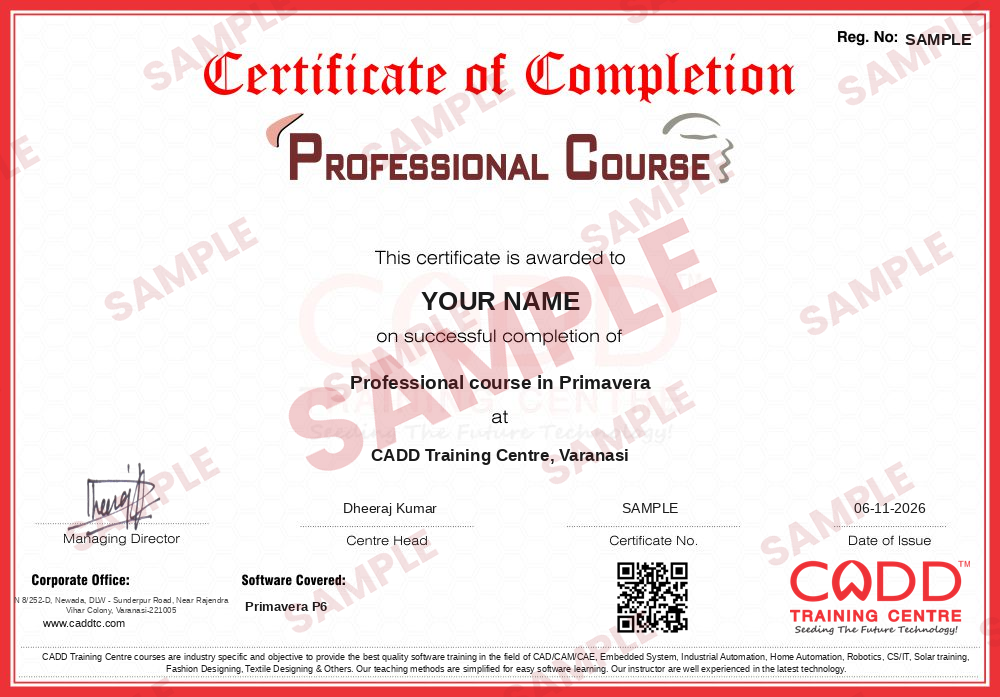
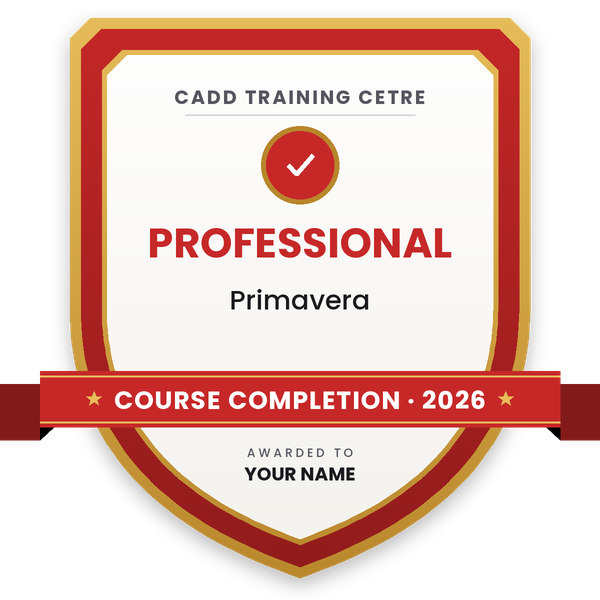
    Sample course-completion certificate — Professional course in Primavera
    Course-completion certificate (sample) — Professional course in Primavera · verifiable online
    Course-completion badge — Professional course in Primavera
    Course-completion badge
    Course
    Professional course in Primavera
    Issued by
    CADD Training Cetre
    Training
    Classroom or live online
    How to earn
    Complete the course and its project
    With your name and year · its own verify link · “Add to profile” on LinkedIn
  6. Certification exam

    Take the certification exam: a theory test and a practical task — at the centre or online.

  7. Certified certificate + marksheet

    Pass the exam and get the certified certificate with your marksheet. Anyone can check it online with its QR code.

  8. Certified badge

    Your certified badge — add it to LinkedIn and share it anywhere; it opens its own verify page.
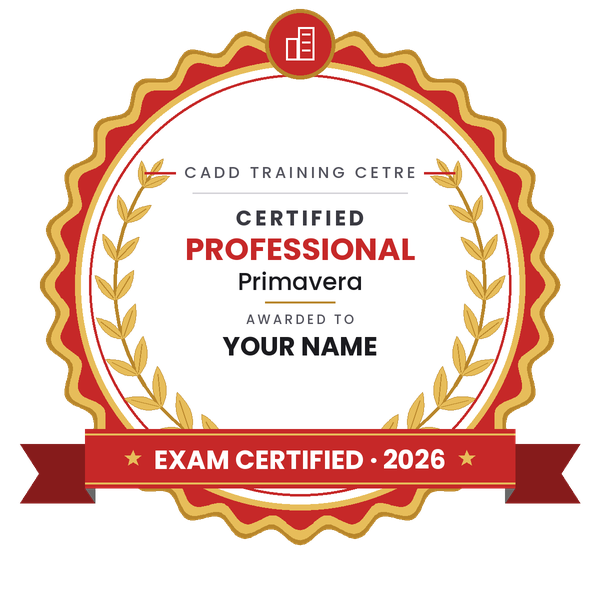
    Certified badge — Professional course in Primavera
    Certified badge
    Course
    Professional course in Primavera
    Issued by
    CADD Training Cetre
    Training
    Classroom or live online
    How to earn
    Pass the certification exam
    You also get
    Certified certificate + marksheet
    With your name and year · its own verify link · “Add to profile” on LinkedIn
  9. Make your CV & apply for jobs

    Make your CV in your student panel (Career → My CV) — your course, certificates and projects are added for you. Send it as a link with a preview picture, and apply to jobs and Hire Me requests from companies.

About the Primavera P6 course

Introducing P6 Professional

When P6 Professional is connected to a P6 EPPM database:

P6 Professional is a separate component of P6 EPPM that integrates traditional project management with streamlined resource and cost management.

It provides a set of robust features aimed primarily to address the needs of project planners and schedulers. (P6 Professional connected to a P6 EPPM database is not used to perform administrative or most enterprise-level tasks.)

P6 Professional features include the following:

  • Support of work breakdown structures (WBS), user-defined fields and codes, critical-path-method (CPM) scheduling, and resource leveling.
  • Multiple users can access the same projects concurrently.
  • Issue tracking
  • Management by threshold
  • A tracking feature that enables you to perform dynamic cross-project rollups of cost, schedule, and earned value
  • Work products and documents that can be assigned to activities and managed centrally
  • Visualizer, which allows you to create time-based Gantt and Timescaled Logic Diagram reports
  • Resource and role administration
  • A Report wizard that helps you create customized reports to extract any data from the P6 EPPM database

When P6 Professional is connected to a P6 Professional database:

P6 Professional is a comprehensive, multiproject planning and control software, built on Oracle and Microsoft SQL Server relational databases for enterprise-wide project management scalability. P6 Professional can stand alone for project and resource management, and it enables your organization to store and manage its projects in a central location. The module supports work breakdown structures (WBS), organizational breakdown structures (OBS), user-defined fields and codes, critical-path-method (CPM) scheduling, and resource leveling.

P6 Professional enables you to budget, prioritize, plan, administer, and manage multiple projects; optimize limited, shared resources; control changes; and consistently move projects to on-time and on-budget completion. It provides customizable interfaces, scalable and flexible tools, and easy integration with project management software outside of the P6 suite, including Oracle Contractor, Microsoft Project, and Microsoft Excel.

P6 Professional provides

  • An enterprise project structure (EPS), which enables project managers to manage multiple projects, from the highest levels of the organization to the individuals that perform specific project tasks. Multiple users can access the same projects concurrently.
  • Integrated risk management
  • Issue tracking
  • Management by threshold
  • A tracking feature that enables you to perform dynamic cross-project rollups of cost, schedule, and earned value
  • Work products and documents that can be assigned to activities and managed centrally
  • Visualizer, which allows you to create time-based Gantt and Timescaled Logic Diagram reports
  • Resource and role administration
  • A Report wizard that helps you create customized reports to extract any data from the P6 Professional database

About P6 Professional Standalone

P6 Professional Standalone uses a P6 Pro Standalone (SQLite) database connection running on a SQLite database. A standalone implementation supports all of the Project Management functionality of P6 Professional except for the following:

  • Update baseline
  • Job Services – Jobs cannot be scheduled.  However, the user can use the Windows scheduler to invoke the command-line interface to import, export, and run batch reports.
  • Risk Analysis
  • Any existing Java-based integration components developed by the customer using the P6 Remote Integration API (RMI) is not supported with a SQLite database.
  • Advanced XML import options

    Note: If you choose to continue to use Oracle XE database, the features listed above are retained.

Additionally, P6 Professional Standalone is single-user implementation. The only user in a P6 Professional Standalone implementation is an Admin Superuser. As a single-user implementation, any features intended for use in a multiple-user implementation are not available in P6 Professional Standalone, including:

  • User administration
  • Security profiles
  • Email
  • Project access (all projects are opened in shared mode)
  • Checking out and checking in projects
  • Saving or importing layouts for all users or other users

If you need a project management solution for multiple users, see the following documents to install an enterprise-wide solution:

  • P6 Professional Installation and Configuration Guide (Oracle Database)
  • P6 Professional Installation and Configuration Guide (Microsoft SQL Server Database)

You will be able to

  • Set up an enterprise project structure (EPS), OBS and calendars for a new project
  • Build a work breakdown structure (WBS) and add activities with durations and codes
  • Link activities with FS, SS, FF and SF relationships, lags and constraints
  • Run the schedule (F9) and read the critical path, total float and free float
  • Assign resources and costs, and level resource overloads
  • Create a baseline, record progress and compare actual against planned
  • Prepare layouts, filters, Gantt charts and reports for site and client meetings

Who it is for

  • Civil, mechanical and electrical engineers who want to move into planning
  • Planning and billing engineers working on construction, EPC or infrastructure jobs
  • Project managers and site managers who review schedules from contractors
  • Final-year B.Tech, diploma and MBA (operations) students

What you need

  • Basic computer skills and comfort with spreadsheets
  • Some idea of how a construction or engineering project runs on site is helpful
  • For live online classes: a Windows PC or laptop with at least 8 GB RAM and a stable internet connection

Courses that include Primavera P6

Professional course in PrimaveraProfessional Course · 40 Hours
Enquire →

Primavera P6 Syllabus

18 chapters · 165 topics
01 Introduction 7 topics
  1. Introduction of Primavera P6 Professional
  2. Primavera Release History
  3. What is Project and Project Management?
  4. Why Use Project Portfolio Management?
  5. Understanding the Your Role in the Organization
  6. Understanding the Project Management Process Overview
  7. Project Management Life Cycle (Planning, Controlling, and Managing Projects)
02 Getting started project management module 6 topics
  1. Primavera P6: Downloading, Installing and Configuring the Database
  2. Set Language, Industry Terminology, and Custom Currencies
  3. Launching & Understanding the Primavera P6 Professional Workspace
  4. Customizing the Toolbars & Managing the P6 workspace
  5. Customizing Menus Bars in Primavera P6
  6. Reset the toolbars and menus to factory defaults in Primavera P6
03 Understanding and Setup User Preferences Setting 11 topics
  1. Define user preferences
  2. Formatting Time Units
  3. Formatting Dates
  4. Setting Currency Symbol
  5. Understanding the Wizard
  6. Setting Mail Preferences
  7. Setting Startup, Group, Sort, and Column Default
  8. Changing your Password
  9. Setting Profile and Spreadsheet Data Options
  10. Setting Calculation Options for Resource and Role
  11. Selecting Startup Filters
04 Working with Projects and Portfolios 9 topics
  1. Creating a Project
  2. Opening and Closing a Project
  3. Copying, Pasting and Deleting a project
  4. Refresh data and Updating data to the database
  5. Understanding "what-if" scenarios and Set-up Default project
  6. Creating, Renaming and Deleting a portfolio
  7. Adding Projects to a Portfolio and Removing Projects from a Portfolio
  8. Adding Users to a portfolio
  9. Change the Current Portfolio and Viewing Portfolio Details
05 Working with EPS, OBS and WBS 14 topics
  1. Understanding and Defining Enterprise Project Structure
  2. Organizing the EPS structure
  3. Adding/Deleting a project to the EPS hierarchy
  4. Copy an EPS node or project
  5. Understanding, Adding & Editing Organizational breakdown structure (OBS)
  6. Cut, Copy, Paste and Delete an OBS element
  7. Viewing/Changing the OBS/OBS Chart Display & OBS Chart Information
  8. Move around the OBS chart
  9. Understanding WBS (Work Breakdown Structure) and Top-Down Planning
  10. Adding, Editing and Deleting a WBS element
  11. Understanding & Assigning WBS weighted milestones
  12. Understanding and Determining a WBS element's status
  13. Cut, Copy and paste a WBS element
  14. Viewing/Changing the WBS, Chart/Table display and Moving WBS chart
06 Calendars 8 topics
  1. Defining default hours per time period in calendars
  2. Understanding the Global vs. Project vs. Resourse Calendars
  3. Creating and Deleting a Project Calendar
  4. Editing and Viewing Project Calendar; Assignments
  5. Creating, Editing and Setting Default a global calendar
  6. Viewing Global Calendar Assignments and Deleting
  7. Creating/Editing/Deleting a shared/Personal resource calendar
  8. View resource calendar assignments & Convert calendar to ...
07 Working with Activities 16 topics
  1. Understanding & Adding the Activity
  2. Understanding the Activity dates
  3. Enter Activity Durations, Activity Start and Finish dates
  4. Understanding & Defining the Activity Types
  5. Understanding & Defining the Activity Duration Types
  6. Deleting an Activity & Defining Milestones
  7. Cut, Copy and Paste an Activities
  8. Understanding the Activity Relationships and Types
  9. Adding Relationships B/w Activities (in depth-look)
  10. Dissolving an Activity
  11. Assigning a Calendar to an Activity
  12. Adding Lead and Lag Duration to an Activity
  13. Changing/Removing Relationships from Predecessor & Successor TAB
  14. Editing/Deleting Relationships in the Gantt Chart & Activity Network
  15. Renumber activity IDs in the Activity Table
  16. Viewing activity relationships
08 Resources, Roles and Resource Curves 12 topics
  1. Understanding the Resources
  2. Understanding the Resource Security
  3. Adding resources
  4. Creating & Assigning Shared/Personal Resource Calendars to Resources
  5. Display, Edit, Cut, Copy Paste and Delete a Resources
  6. Changing the Resource Type for Resources
  7. Defining, Deleting & Specifying the Unit of Measure for Material Resources
  8. Understanding & Adding Roles
  9. Viewing, Editing and Deleting Roles
  10. Changing the Proficiency of a Role
  11. Defining price/unit rates and Role Limits Over Time
  12. Understanding, Adding and Deleting the Resource curves
09 Managing Project Default Data 10 topics
  1. Managing Projects using the EPS & Defining Project Details
  2. Entering Project Dates & Specify a Fiscal Start Month
  3. Change the Project Name & ID
  4. Changing the Project's Status
  5. Changing the Project Leveling Priority
  6. Setting-up Activity ID options
  7. Set the Default Price for Activities & Rate Type for Resource Assignments
  8. Set the Project Default Activity Type & Activity Duration Type
  9. Set the Project Default Activity Percent Complete Type & Activity Calendar
  10. Set the Default Cost Account & the Float Time for Identifying Critical Activities
10 Defining Project, Resource, and Activity Codes 9 topics
  1. Understanding & Creating Project Codes and Values
  2. Editing, Deleting & Assign Project Codes and Values
  3. Understanding & Creating Resource Codes and Values
  4. Editing, Deleting & Assign Resource Codes and Values
  5. Understanding the Activity codes and values
  6. Defining Global Activity Codes, Values and Values Colors
  7. Defining Project Activity Codes, Values and Values Colors
  8. Defining EPS-level Activity Codes, Values and Values Colors
  9. Assigning/Changing/Removing Activity Codes & Values to/From Activities
11 Assigning Resources, Roles and Resource Curves 10 topics
  1. Assigning and Removing Resources to Activities
  2. Associate a Primary Resource with an Activity
  3. Replacing Resources Assigned to Activities
  4. Assigning a Rate Type to a Resource Assignment
  5. Choosing the Rate Source for an Assignment
  6. Assign Roles to Resources from the Resources Window and Roles Dialog Box
  7. Assigning resources to activities by role
  8. Changing the Resource's Role Assignments for an Activity
  9. Assigning Roles to Activities
  10. Assigning and Removing a Curve to a Resource or Role Assignment
12 Defining Custom Fields, Grouping & Sorting, Filtering, and Summarizing Data 4 topics
  1. Understanding and Defining Custom User Fields
  2. Grouping & Sorting Data in Depth Look
  3. Filtering Data in Depth Look
  4. Summarizing Data
13 Entering Cost Information and Expenses for an Activities 7 topics
  1. Understanding and Adding Expenses
  2. Assigning Expense Categories & Customize Expense Columns
  3. Specifying an Accrual Type, Entering cost information & Changing an expense's activity assignment
  4. Cuting, Copying, Pasting and Deleting Expenses
  5. Understanding and Creating a Cost Account Hierarchy
  6. Cuting, Copying, Pasting and Deleting Cost Account
  7. Seting the Project Default & Editing a Cost account
14 Adding Activity Steps/=Template & Assigning Templates & Notebooks 7 topics
  1. Understanding & Adding Activity Steps
  2. Updating & Removing Activity Steps
  3. Adding Weights to Steps
  4. Understanding & Creating Activity Step Templates
  5. Convert Steps into an Activity Step Template
  6. Assign Activity Step Templates to Activities
  7. Assigning/Removing Notebooks to/from Activities
15 Managing Primavera Projects - I 10 topics
  1. Working with Budgets, Funding Sources and Spending Amounts
  2. Working with Baseline in Primavera
  3. Working with Updating Projects Schedule
  4. Understanding and Calculating the Earned Value
  5. Working with Creating and Using Reflections
  6. Understanding the Scheduling Projects and "Nondriving" Resource Assignments
  7. Understanding and Assigning the Types of constraints
  8. Understanding the CPM (Critical Path Method - Manually)
  9. Working with CPM (Critical Path Method) in Primavera
  10. Working with Scheduling Projects
16 Managing Primavera Projects - II 5 topics
  1. Working with Leveling Resources
  2. Adding and Assigning Issues
  3. Adding and Assigning Thresholds
  4. Adding and Assigning Risks (P6 Professional Only)
  5. Adding and Assigning Work Products and Documents
17 Customizing Layouts 11 topics
  1. Customizing Activity Table - in Depth Look
  2. Customizing Detail Window & Adding Line No.
  3. Using Timescaled Layout Options
  4. Customizing The Gantt Chart - in Depth Look
  5. Customizing The Activity Network - in Depth Look
  6. Understanding and Using Trace Logic Options
  7. Activity Usage Profile - in Depth Look
  8. Activity Usage Spreadsheet - in Depth Look
  9. Resource Usage Profile - in Depth Look
  10. Resource Usage Spreadsheet - in Depth Look
  11. Preparing, Saving, Opening & Deleting a Layout
18 Tracking Primavera Projects 9 topics
  1. Understanding the Tracking, Tracking Layouts and Types of Tracking Layouts
  2. Saving, Exporting, Importing and Deleting the Tracking Layouts
  3. Managing the Tracking Layouts
  4. Working with Project Table layouts
  5. Working with Project Bar Chart Layouts
  6. Working with Project Gantt/Profiles
  7. Working with Resource Analysis layouts
  8. Working with the Gantt Chart
  9. Working with the Profile and Spreadsheet

Ratings & reviews

Students rate the course after they finish it — their ratings appear here.

Primavera P6 course — FAQ

What is Primavera P6 used for?

Primavera P6 Professional is project scheduling software. Planners use it to break a project into a WBS and activities, link them, find the critical path, load resources and costs, and track progress against a baseline on large construction, power, oil and gas and infrastructure jobs.

Who can join the Primavera P6 course?

Engineers, diploma holders, project managers and management students can join. You need basic computer skills; knowing how a project moves from start to handover on site makes the planning concepts easier to follow.

How long is the Primavera P6 course?

The Primavera P6 course runs for 40 hours. The time is split between scheduling concepts and hands-on work in P6 on a sample project, from EPS set-up to progress updating.

Can I learn Primavera P6 online?

Both are available. In live online Primavera P6 classes you build the sample schedule on your own PC while the trainer checks logic and float, and classroom batches at CADD centres follow the same plan.

Will I get a certificate after the Primavera course?

Yes. Primavera P6 learners receive a CADD Training Centre certificate at the end. Show it to an EPC contractor, who can confirm it online through the QR code.

What jobs can I get after learning Primavera P6?

P6 skills support roles such as planning engineer, project scheduler, project control engineer, billing and planning engineer, and assistant project manager with contractors, EPC companies and consultants.

What is the difference between Primavera P6 and MS Project?

Both are scheduling tools. MS Project is common for smaller and mid-size projects and in IT and office settings, while Primavera P6 is widely used on large construction and EPC projects with many activities, multiple projects and detailed resource and cost control.

Is Primavera P6 hard to learn?

Not if you learn it step by step. The software itself is logical; most effort goes into understanding WBS, relationships and float. Working through a full sample project in class makes these ideas clear.

More questions? Ask our counsellor or read the general FAQ.

Primavera P640 Hours
Enquire now