Classroom & live online60 HoursVerifiable certificateSyllabus ↓
ARTCAM Course
ArtCAM is an all-in-one CADCAM software package for designing artistic products and manufacturing them using CNC machine tools or laser-engraving machines.
Your roadmap — from admission to certificate
1
Free counselling
Talk to our counsellor — choose the right course, batch time and mode.
2
Admission
Join at a CADD centre near you or online. You get your student login and ID card.
3
Learn step by step
60 Hours of hands-on ARTCAM classes — in the classroom or live online.
ARTCAM FundamentalGetting StartedCreating Vector Using With Drafting toolsBasic OperationsManipulation Command in ArtCAMManipulation Command in ArtCAM - IIWorking with LayersCreating and Editing Vector Using Advance ToolsWorking with Bitmap3D Modeling (Relief Creation)
4
Practice & project
Exercises in every class and a final project, checked by your trainer.
5
Course completion certificate + completion badge
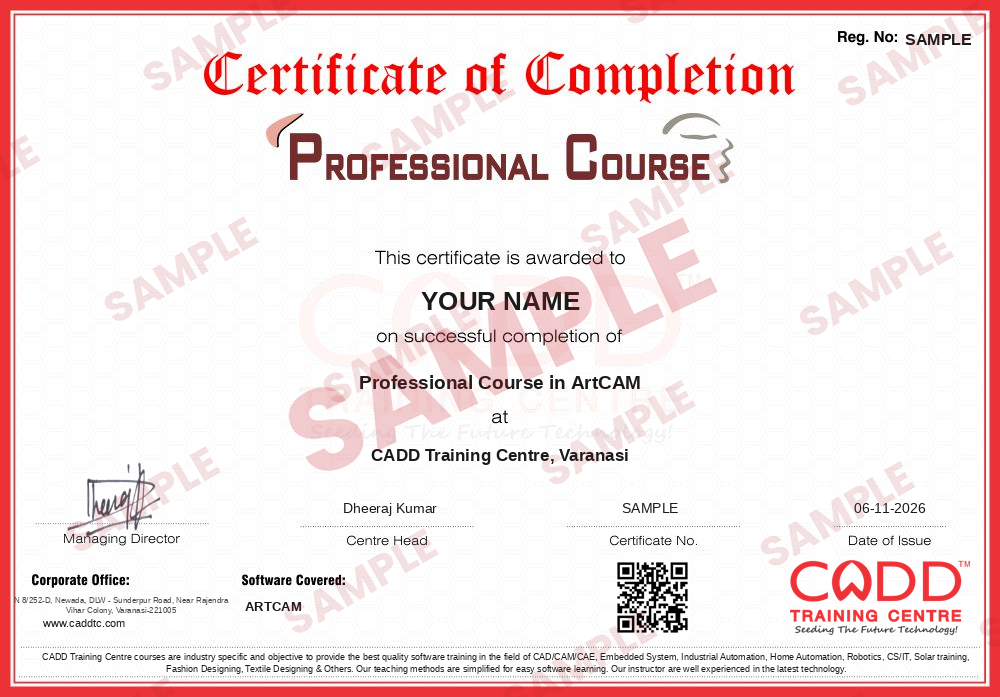
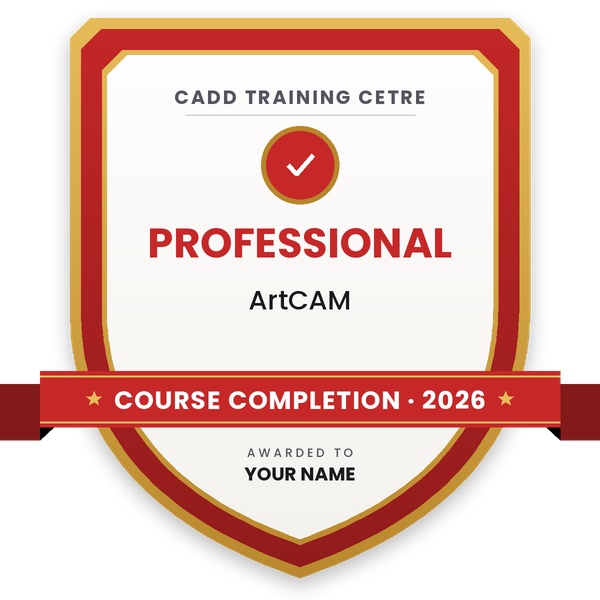
Finish the course and get your course-completion certificate and a digital completion badge with your name.
Course-completion certificate (sample) — Professional Course in ArtCAM · verifiable online
Course-completion badge
Course
Professional Course in ArtCAM
Issued by
CADD Training Cetre
Training
Classroom or live online
How to earn
Complete the course and its project
With your name and year · its own verify link · “Add to profile” on LinkedIn
6
Certification exam
Take the certification exam: a theory test and a practical task — at the centre or online.
7
Certified certificate + marksheet
Pass the exam and get the certified certificate with your marksheet. Anyone can check it online with its QR code.
8
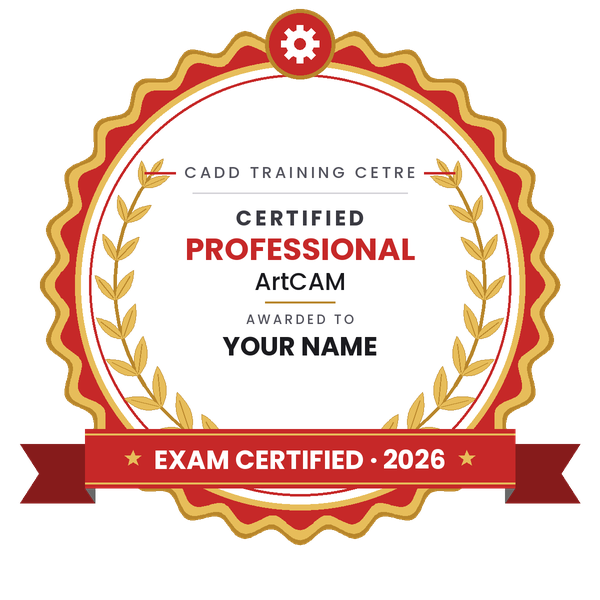
Certified badge
Your certified badge — add it to LinkedIn and share it anywhere; it opens its own verify page.
Certified badge
Course
Professional Course in ArtCAM
Issued by
CADD Training Cetre
Training
Classroom or live online
How to earn
Pass the certification exam
You also get
Certified certificate + marksheet
With your name and year · its own verify link · “Add to profile” on LinkedIn
9
Make your CV & apply for jobs
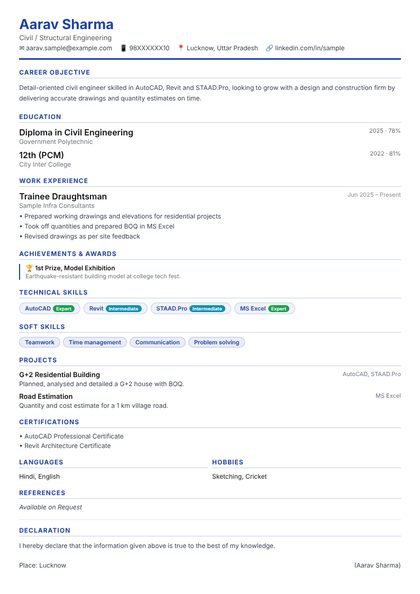
Make your CV in your student panel (Career → My CV) — your course, certificates and projects are added for you. Send it as a link with a preview picture, and apply to jobs and Hire Me requests from companies.
ArtCAM is an all-in-one CADCAM software package for designing artistic products and manufacturing them using CNC machine tools or laser-engraving machines.
Designing
You can create 2D designs by importing images or creating images using vectors and bitmaps. You can also create 3D designs by importing reliefs or creating reliefs from vectors and bitmaps.
Manufacturing
When you have finished creating the 2D or 3D design, you can choose a machining toolpath to manufacture the design into a product. After ArtCAM calculates and generates the toolpath, you can simulate the toolpath, before then saving it and exporting the data to the machine.
You will be able to
Create and edit vector artwork for signs, panels and decorative designs
Import images and bitmaps and convert them into usable vectors
Build 3D reliefs from vectors, bitmaps and imported relief files
Combine, sculpt and smooth reliefs for carving and moulding work
Generate 2D profiling, area clearance and V-bit carving toolpaths
Create 3D roughing and finishing toolpaths and simulate them
Save toolpaths in the correct machine format for CNC routers and engravers
Who it is for
Mechanical and manufacturing students interested in CNC design
CNC router, engraving and laser machine operators
Furniture, signage, jewellery and handicraft makers
Designers in wood carving, stone carving and mould making units
What you need
Basic computer skills
An interest in artistic design; drawing or CorelDRAW knowledge helps
A Windows PC with at least 8 GB RAM for live online classes
Courses that include ARTCAM
Professional Course in ArtCAMProfessional Course · 60 Hours
03Creating Vector Using With Drafting tools9 topics+
Understanding About Vectors
Creating Free-Form Shapes
Creating Rectangular Shape
Creating Circular Shape
Creating Elliptical Shape
Creating Polygonal Shape
Creating Star Shape
Creating Arc Shape
Creating Text Shape in Depth
04Basic Operations9 topics+
Creating, Editing and Deleting the Current/New 2D View
Setting & Displaying the Co-ordinate Value
Setting & Displaying the Grid
Setting & Displaying the Ruler
Creating, Displaying and Deleting the Guidelines
Understanding the UNDO and REDO Operation
Understanding and Controlling the Object SNAPs
Working With Snaps
Using other Basic Operations Tools
05Manipulation Command in ArtCAM6 topics+
Using TRIM Tool and Technics
Understanding and Using OFFSET Tool
Using Transform Tool
Using Advanced Technics to Copy, Rotate and Move
Working with Node Editing
Editing Vector Spans in ArtCAM
06Manipulation Command in ArtCAM - II8 topics+
Mirroring Object
Using Boolean Operations
Joining Vectors and Vector Nodes
Clossing and Aligning Vector Nodes
Using Rectangular and Polar Array
Copying object Along the Path
Aligning Vectors
Creating and Editing Vector Fillets
07Working with Layers6 topics+
Understanding and Creating a Vector Layer
Assigning Layer into Existing Object
Moving, Deleting, Duplicating, Renaming and Merging Vector Layers
Controlling the Layer Visibility, Locking/Unlocking, and Snapping
Exporting and Importing Vector Layer and Objects
Selecting Vectors and Understanding the colour-coding of vectors
08Creating and Editing Vector Using Advance Tools9 topics+
Importing the Vectors
Cleanup the Vector Intersection
Cleanup the Vector Nodes/Convert Vector into Spline
Convert Spline Vector into fit Arc
Using Selection Technics
Understanding the Grouping Concept
Creating Vectors from Intersecting Boundaries
Separating Vector with Specific Intersecting Boundary
Converting Vectors into Regular Shapes
09Working with Bitmap9 topics+
Understanding About the Bitmaps
Importing an Images and Understanding the Technical Terms
Understanding and Selecting the primary and secondary colours
Reducing the Number of Colours from Artwork
Creating Vectors from Bitmap
Understanding and Creating a bitmap layer
Importing and Exporting Bitmap Artwork
Duplicating, Deleting and Renaming Bitmaps Layers
Viewing and Clearing a Bitmap Layer
103D Modeling (Relief Creation)10 topics+
Understanding, Creating and Selecting a Relief Layer/Layer Group
Importing and Exporting a Relief Layer
Moving, Deleting, Duplicating and Renaming a Relief Layer
Merging and Controlling the Visibility of Relief Layers
Understanding the Shape Editor Tool
Creating Basic Shapes Using Closed Vectors
Creating Constant-Height Lettering
Creating a Male/Concave or Female/Convex Dome Shape
Understanding and Create Weave Reliefs
Creating an Angled Plane on a Relief Layer
113D Modeling (Relief Creation)- II7 topics+
Creating a Extruded Shapes
Creating a Spun Shape
Creating a Turned Shape
Pasting Relief Along a Curve
Understanding and Creating a Blended Shape
Understanding and Creating Blended Text and Shapes
Creating Latent Images within Reliefs
12Modifying 3D Model (Relief Editing)13 topics+
Reset a Selected Relief Layer
Scale the Z Height of a Relief Layer
Scale the Volume of Relief Layers
Remove Surface Irregularities on a Relief Layer
Remove Small Holes on the Surface of a Relief Layer
Reset, or Zero, the Height of a Selected Relief Layer
Mirroring the Reliefs
Offset and Fade a Selected Relief Layer
Changing Vertical Faces on a Relief Layer
Extract the Pieces from Relief Layer For Clipart
Divide the Content on a Relief Layer into Slices
Applying Texture to a Relief Layer
Invert Selected Relief Layers
13Machining19 topics+
Understanding the 2D Machining and 2D Toolpath Tools
Understanding the 3D Machining and 3D Toolpath Tools
Understanding and Using the Tool Database
Reviewing and Editing the available Database Tools
Adding, Copying and Deleting the Tools
Adding, Copying and Deleting the Tool Group
Opening, Importing and Saving the Tool Database
Creating the Form Tools
Specifying the Material Setup and Deleting Material
Adding and Editing bridges
Selecting, Editing, Calculating and Deleting a single toolpath
Setup the toolpath order
Adjusting the Machining Parameters for CNC Machine Tool
Editing a Profile Pass within a Selected Toolpath
Setting the Machining Order in ArtCAM
Viewing and Simulating the Toolpaths
Controlling the Visibility/ Colour of Toolpaths/ Simulated Toolpaths
Understanding Cut Direction and Ramping Moves
Specifying the cut sequence
142D Machining Operations12 topics+
Understanding and Using Profile Toolpath
Understanding and Using Fluting Toolpath
Using 2D Area-Clearance Toolpath
Using V-Bit Carving Toolpath
Using Bevel-Carving Toolpath
Using Smart Engraving Toolpath
Using Drill-Holes Toolpath
Using Inlay wizard
Using Raised-Round Toolpath
Using Texture Toolpath
Using Drill-Bank Toolpath
Using Grid-Creator Toolpath
15Working With Sheets and Plates6 topics+
Understanding and Creating a New Sheet
Selecting, Renaming and Deleting the Existing Sheet
Preparing Data File for Creating Sheets of Badges or Name-Plates
Creating Sheets of Badges or Name-Plates
Creating Sheets with Nest Selected Vectors Tool
Using 2D Machining Wizard Tool
163D Machining Operations5 topics+
Using Machine-Relief Toolpath
Using Feature-Machining Toolpath
Using Z-Level Roughing Toolpath
Using Laser-Machining Toolpath
Using 3D Cut-Out Toolpath
17Post-Processing Tool Paths9 topics+
Saving a Toolpath
Creating a Toolpath Template
Loading a Toolpath Template
Transforming Toolpaths
Copying Toolpaths
Creating Toolpath Panels
Merging Toolpaths
Calculating a Batch of Toolpaths
Using a Toolpath Summary
18Advanced Modeling & Editing in ARTCAM10 topics+
Working with Bitmap
Working with Bitmap Colour - I
Working with Bitmap Colour - II
Creating Relief with Bitmap Colours
Advance Modeling with Two Rail Sweep
Manipulating the Reliefs Using the Sculpting Tools
Manipulating the Reliefs Using the Boolean Tools
Assigning a Combine Mode to a Relief Layer
Projecting the Vectors Across the Surface of a Relief
Creating Sheets of Badges or Name-Plates
19Advanced Operations12 topics+
Modifying the Dimensions of an Open Model
Set the Model Position and Resolution
Mirroring and Rotating the Model
Creating a Greyscale Image and Removing any Isolated Pixels
Adjust the Appearance of the Composite Relief
Find out the Size, Position and Angle of any object
Specify the Graphics Settings
Modifying a Vector, or Piece of Relief Clipart, within the Model
Altering the Parts of Your Model
Pasting the Consecutive Copies of Relief Clipart
Using Keyboard Shortcuts
Assigning or Changing Keyboard Shortcuts
Ratings & reviews
Students rate the course after they finish it — their ratings appear here.
ARTCAM course — FAQ
What is ArtCAM used for?
ArtCAM is CAD/CAM software for designing artistic products such as carved doors, signs, plaques, jewellery and moulds, and for producing toolpaths to cut them on CNC routers or engraving machines.
Is ArtCAM still available?
Autodesk stopped selling ArtCAM, and its technology continues in a successor product called Carveco. The relief modelling and toolpath skills you learn transfer directly to these related tools.
Who can join the ArtCAM course?
CNC operators, furniture and signage makers, jewellery and handicraft designers, and mechanical students can join. Basic computer skills are enough to start.
How long is the ArtCAM course?
The ArtCAM course runs for 60 Hours, covering vectors, bitmaps, relief modelling, toolpaths and simulation with practical design exercises.
Can I learn ArtCAM online or only in the classroom?
Both. ArtCAM is taught in the classroom at CADD Training Centre branches and in live online classes, with relief and vector practice files shared for every session.
Do I get a certificate for the ArtCAM course?
Yes. ArtCAM learners get a CADD Training Centre certificate after the course, verifiable online through its QR code or verification code, which helps when you approach CNC carving workshops.
What jobs can I do after learning ArtCAM?
You can work as a CNC router designer, relief designer, CNC programmer for wood or stone carving, or start your own CNC design and carving work.