Classroom & live online 80 Hours Verifiable certificate Syllabus ↓

Mastercam Course

Learn Mastercam CNC programming: 2D and 3D milling, lathe toolpaths, simulation and G-code posting.

Your roadmap — from admission to certificate

  1. Free counselling

    Talk to our counsellor — choose the right course, batch time and mode.

  2. Admission

    Join at a CADD centre near you or online. You get your student login and ID card.

  3. Learn step by step

    80 Hours of hands-on Mastercam classes — in the classroom or live online.

    Introduction to CAM and CNC MachiningWireframe Geometry and Model PreparationMachining Setup2D Milling ToolpathsDynamic and High-Speed 2D MachiningToolpath Verification3D Surface MachiningLathe (Turning) ProgrammingMultiaxis Overview and FixturesPost Processing and Shop Documentation
  4. Practice & project

    Exercises in every class and a final project, checked by your trainer.

  5. Course completion certificate + completion badge

    Finish the course and get your course-completion certificate and a digital completion badge with your name.
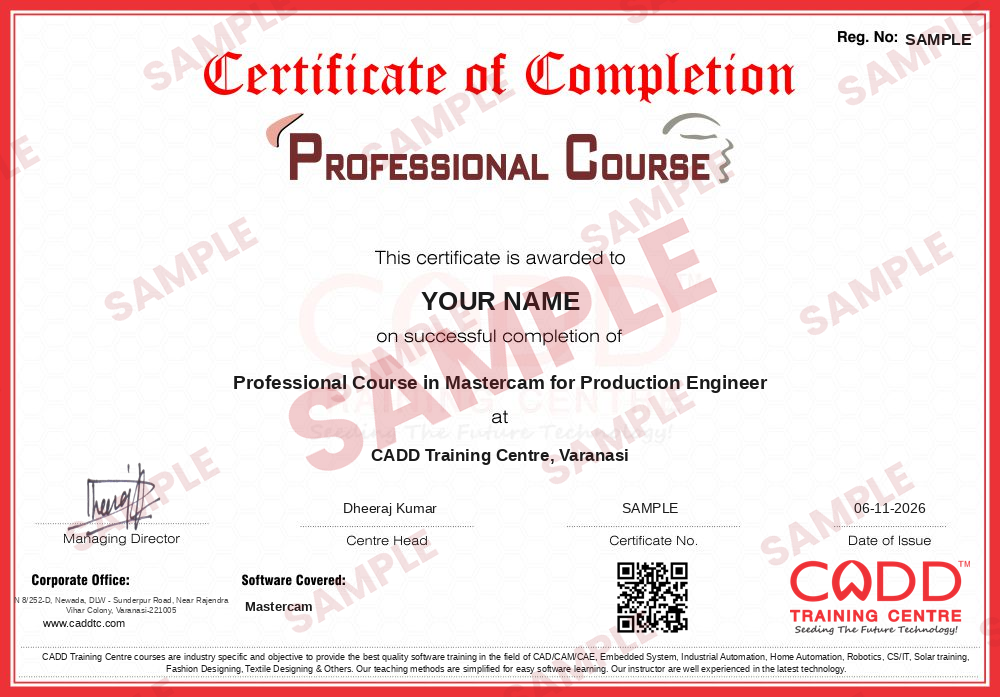
    Sample course-completion certificate — Professional Course in Mastercam for Production Engineer
    Course-completion certificate (sample) — Professional Course in Mastercam for Production Engineer · verifiable online
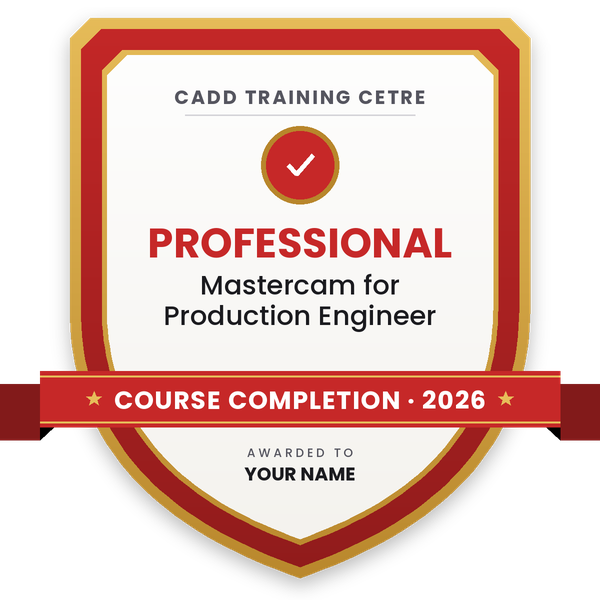
    Course-completion badge — Professional Course in Mastercam for Production Engineer
    Course-completion badge
    Course
    Professional Course in Mastercam for Production Engineer
    Issued by
    CADD Training Cetre
    Training
    Classroom or live online
    How to earn
    Complete the course and its project
    With your name and year · its own verify link · “Add to profile” on LinkedIn
  6. Certification exam

    Take the certification exam: a theory test and a practical task — at the centre or online.

  7. Certified certificate + marksheet

    Pass the exam and get the certified certificate with your marksheet. Anyone can check it online with its QR code.

  8. Certified badge

    Your certified badge — add it to LinkedIn and share it anywhere; it opens its own verify page.
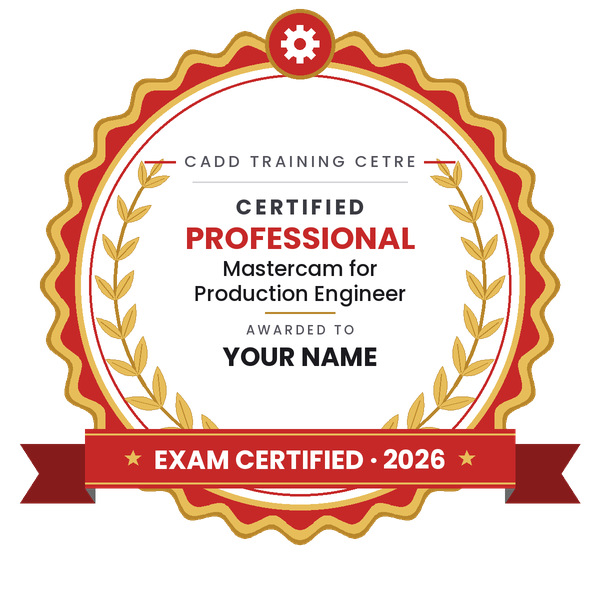
    Certified badge — Professional Course in Mastercam for Production Engineer
    Certified badge
    Course
    Professional Course in Mastercam for Production Engineer
    Issued by
    CADD Training Cetre
    Training
    Classroom or live online
    How to earn
    Pass the certification exam
    You also get
    Certified certificate + marksheet
    With your name and year · its own verify link · “Add to profile” on LinkedIn
  9. Make your CV & apply for jobs

    Make your CV in your student panel (Career → My CV) — your course, certificates and projects are added for you. Send it as a link with a preview picture, and apply to jobs and Hire Me requests from companies.

About the Mastercam course

Mastercam is CAD/CAM software that converts drawings and 3D models into CNC toolpaths and G-code for milling machines, lathes, routers and multi-axis machines. Machine shops, tool rooms, die and mould makers and component manufacturers use it to plan cutting strategies, check them in simulation and send safe, efficient programs to the shop floor.

This 80-hour Mastercam course follows the path a part takes from design to machine. After an introduction to CNC machine types, axes, work offsets and basic G and M codes, you create and import geometry, prepare solid models and set up machine groups, stock, work coordinate systems and tools. You then program 2D milling toolpaths such as face, contour, pocket, drill and Dynamic Mill, followed by 3D roughing and finishing with Optirough, Waterline and Scallop. Turning operations cover face, rough, finish, groove, thread and cut-off. Every toolpath is checked with Backplot and the Simulator for collisions and gouges before post-processing into NC code with setup sheets. A complete milling and turning project closes the course, taught hands-on in the classroom or in live online classes.

Mastercam skills suit roles such as CNC programmer, CAM engineer and VMC programmer. Knowing a CAD tool like SolidWorks or Creo makes the course even more useful.

You will be able to

  • Import or create part geometry and prepare it for machining in Mastercam
  • Set up machine groups, stock, work coordinate systems and tools
  • Program 2D milling toolpaths such as facing, contour, pocket, drilling and Dynamic Mill
  • Generate 3D roughing and finishing toolpaths for surfaces and solid models
  • Program turning operations including face, rough, finish, groove, thread and cut-off
  • Verify toolpaths with Backplot and simulation to avoid collisions and gouges
  • Post-process toolpaths into G-code and prepare a setup sheet for the shop floor

Who it is for

  • Mechanical, production and manufacturing engineering students
  • Diploma and ITI students (machinist, turner, fitter) moving into CNC programming
  • CNC operators who want to become CNC programmers
  • Tool room and production engineers working with VMC and CNC lathes

What you need

  • Basic computer skills and the ability to read engineering drawings
  • Some knowledge of machining processes and cutting tools is helpful
  • Any 2D/3D CAD course (AutoCAD, SolidWorks, Creo) is useful but not compulsory
  • A Windows PC with at least 8 GB RAM and a dedicated graphics card for live online classes

Courses that include Mastercam

Professional Course in Mastercam for Production EngineerProfessional Course · 80 Hours
Enquire →
Professional Course in Design & Production EngineerProfessional Course · 160 Hours · 2 software
Enquire →
CNC Programmer – Professional Career ProgramProfessional Career Program · 240 Hours, 3 Months · 7 software
Enquire →

Mastercam Syllabus

11 chapters · 56 topics
01 Introduction to CAM and CNC Machining 5 topics
  1. CNC machine types: VMC, HMC and CNC lathe
  2. Machine axes, work zero and tool offsets
  3. G-code and M-code basics
  4. CAD to CAM to CNC workflow
  5. Mastercam interface, ribbon tabs and Manager panels
02 Wireframe Geometry and Model Preparation 6 topics
  1. Lines, arcs, rectangles and splines
  2. Trim, break, join and offset
  3. Transform: translate, rotate, mirror and array
  4. Levels, attributes and selection methods
  5. Importing STEP, IGES, DWG and native CAD files
  6. Solids and Model Prep tools: push-pull and simplify
03 Machining Setup 5 topics
  1. Machine definition and machine group
  2. Stock setup: block, cylinder and from solid
  3. Planes, WCS and tool plane
  4. Tool Manager and creating custom tools
  5. Feeds, speeds and material library
04 2D Milling Toolpaths 6 topics
  1. Face toolpath
  2. Contour with lead-in and lead-out
  3. Pocket and island pocketing
  4. Drill, peck drill, tap and Circle Mill
  5. Slot Mill and Chamfer
  6. Engrave and text machining
05 Dynamic and High-Speed 2D Machining 5 topics
  1. Dynamic Mill and Dynamic Contour
  2. Area Mill and Peel Mill
  3. Rest material machining
  4. Stepover, stepdown and micro-lift settings
  5. Toolpath optimisation for cycle time
06 Toolpath Verification 5 topics
  1. Toolpath Manager: edit, copy and regenerate
  2. Backplot and step-by-step display
  3. Mastercam Simulator and stock verification
  4. Collision and gouge checking
  5. Comparing stock with the model
07 3D Surface Machining 5 topics
  1. Optirough and Area Roughing
  2. Raster, Waterline and Scallop finishing
  3. Hybrid, Pencil and Project toolpaths
  4. Containment boundaries and machining regions
  5. Ball, bull and flat end mill selection for 3D work
08 Lathe (Turning) Programming 6 topics
  1. Lathe machine group and stock/chuck setup
  2. Face and Rough toolpaths
  3. Finish and Groove toolpaths
  4. Thread and Drill on lathe
  5. Cutoff and stock flip operations
  6. Lathe simulation
09 Multiaxis Overview and Fixtures 4 topics
  1. 4-axis rotary machining concepts
  2. Introduction to 5-axis toolpaths
  3. Fixtures, clamps and workholding in simulation
  4. Multiple setups and work offsets
10 Post Processing and Shop Documentation 5 topics
  1. Post processor selection
  2. Generating NC files (G-code)
  3. Reading and checking the NC program
  4. Setup sheets and tool lists
  5. Sending programs to the machine safely
11 Final Machining Project 4 topics
  1. Complete milling project from drawing to G-code
  2. Complete turning project
  3. Cycle time review and toolpath improvement
  4. Project review with the trainer

Ratings & reviews

Students rate the course after they finish it — their ratings appear here.

Mastercam course — FAQ

What is Mastercam used for?

Mastercam is a CAD/CAM program used to create CNC toolpaths for milling machines, lathes, routers and multi-axis machines. It turns a 2D drawing or 3D model into G-code that a CNC machine can run.

Who can learn Mastercam?

Mechanical and production students, ITI and diploma holders, CNC operators and tool room engineers can join. You should be able to read engineering drawings; basic machining knowledge helps a lot.

How long does it take to learn Mastercam?

Our Mastercam course is 80 Hours long. It covers 2D and 3D milling, turning, simulation and post processing, followed by a complete machining project.

Is the Mastercam course available online?

Yes. Mastercam is offered in the classroom at CADD Training Centre branches and in live online classes; the trainer shares the screen and checks your toolpaths and simulations.

Will I receive a certificate for Mastercam training?

Yes. The 80-hour Mastercam course ends with a CADD Training Centre certificate. Machine shops can verify it online by scanning the QR code or entering the verification code.

What jobs can I get after a Mastercam course?

Mastercam skills support roles such as CNC programmer, CAM engineer, VMC programmer, CNC setter-programmer and process engineer in machining, tool room and die-mould companies.

Do I need to know G-code before learning Mastercam?

No. Mastercam generates the G-code for you, but the course explains common G and M codes so you can read and check a program before it goes to the machine.

Should I learn a CAD software before Mastercam?

It is helpful but not essential. Mastercam has its own modelling tools, yet knowing SolidWorks, Creo or AutoCAD makes it easier to prepare and import part models.

More questions? Ask our counsellor or read the general FAQ.
Mastercam80 Hours
Enquire now