Classroom & live online 24 Hours Verifiable certificate Syllabus ↓

MOS: Microsoft Office PowerPoint Associate Course

Learn PowerPoint to design slides, use masters, charts, animation and media, and present with confidence.

Your roadmap — from admission to certificate

  1. Free counselling

    Talk to our counsellor — choose the right course, batch time and mode.

  2. Admission

    Join at a CADD centre near you or online. You get your student login and ID card.

  3. Learn step by step

    24 Hours of hands-on MOS: Microsoft Office PowerPoint Associate classes — in the classroom or live online.

    What is PowerPoint?Working with SlidesWorking with TextWorking with Charts and TablesAdding Multimedia ElementsEnhancing PresentationsPreparing the Slide ShowSharing Presentations
  4. Practice & project

    Exercises in every class and a final project, checked by your trainer.

  5. Course completion certificate + completion badge

    Finish the course and get your course-completion certificate and a digital completion badge with your name.
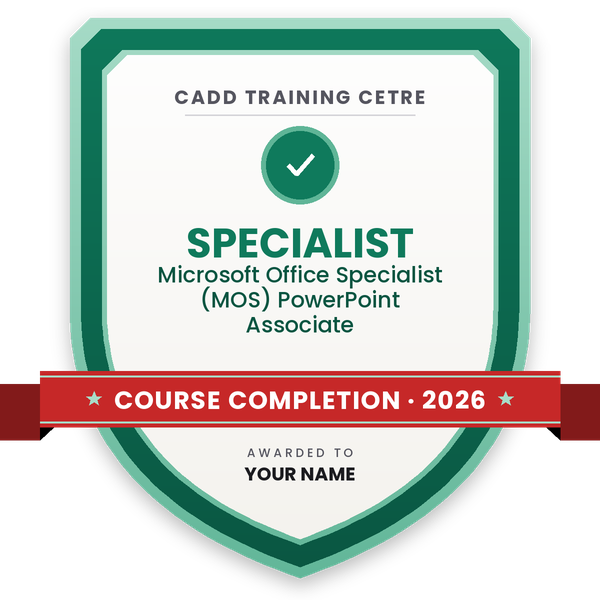
    Course-completion badge — Microsoft Office Specialist (MOS) PowerPoint Associate
    Course-completion badge
    Course
    Microsoft Office Specialist (MOS) PowerPoint Associate
    Issued by
    CADD Training Cetre
    Training
    Classroom or live online
    How to earn
    Complete the course and its project
    With your name and year · its own verify link · “Add to profile” on LinkedIn
  6. Certification exam

    Take the certification exam: a theory test and a practical task — at the centre or online.

  7. Certified certificate + marksheet

    Pass the exam and get the certified certificate with your marksheet. Anyone can check it online with its QR code.

  8. Certified badge

    Your certified badge — add it to LinkedIn and share it anywhere; it opens its own verify page.
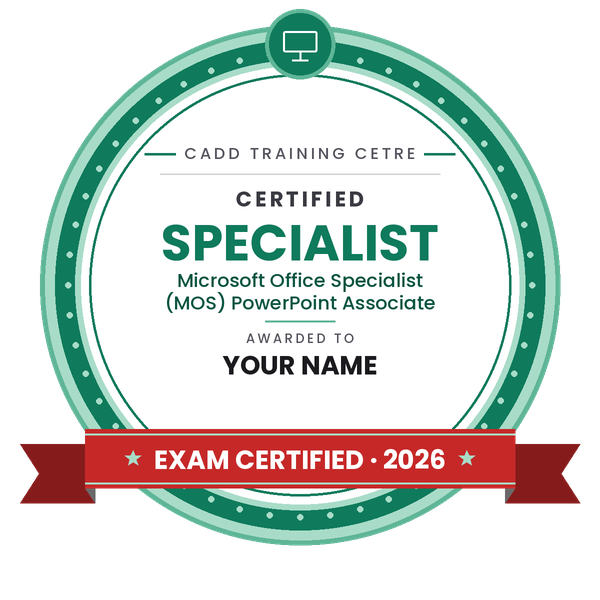
    Certified badge — Microsoft Office Specialist (MOS) PowerPoint Associate
    Certified badge
    Course
    Microsoft Office Specialist (MOS) PowerPoint Associate
    Issued by
    CADD Training Cetre
    Training
    Classroom or live online
    How to earn
    Pass the certification exam
    You also get
    Certified certificate + marksheet
    With your name and year · its own verify link · “Add to profile” on LinkedIn
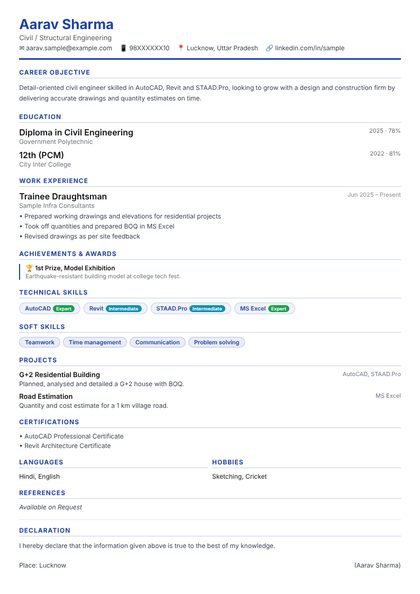
  9. Make your CV & apply for jobs

    Make your CV in your student panel (Career → My CV) — your course, certificates and projects are added for you. Send it as a link with a preview picture, and apply to jobs and Hire Me requests from companies.

About the MOS: Microsoft Office PowerPoint Associate course

Microsoft PowerPoint is the most widely used program for building presentations. Students use it for seminars and project reviews, teachers for lessons, and companies for sales pitches, training sessions, reports and meetings. A well-built deck saves time and helps an idea land with the audience.

This 24-hour MOS PowerPoint Associate course follows the skill areas of the Microsoft Office Specialist PowerPoint Associate objectives. You learn to create and organise presentations with sections, customise the Slide Master, Handout Master and Notes Master, and work with themes and layouts. You then insert and format text, shapes, pictures, icons, tables, charts, SmartArt, 3D models, audio and video. Transitions, animations, Animation Pane timing, Presenter View, Rehearse Timings and print settings are covered next, followed by comments, Inspect Presentation and export options. Every lesson is hands-on, in the classroom at CADD centres or in live online classes.

Strong PowerPoint skills help in office, teaching, sales, marketing and training roles. Learners often continue with the Word and Excel MOS courses to complete their Office skill set; your counsellor can also advise on taking the Microsoft exam.

You will be able to

  • Create presentations with themes, layouts and sections
  • Customise the Slide Master, Notes Master and Handout Master
  • Insert and format shapes, pictures, icons, tables, charts and SmartArt
  • Add audio, video and 3D models and control playback
  • Apply transitions and animations and fine-tune timing in the Animation Pane
  • Rehearse and deliver slide shows with Presenter View
  • Review, inspect and export presentations to PDF and video

Who it is for

  • School and college students who present projects and seminars
  • Teachers and trainers who prepare lesson slides
  • Sales, marketing and corporate staff who pitch to clients
  • Learners preparing for the Microsoft Office Specialist PowerPoint Associate exam

What you need

  • Basic computer skills
  • Microsoft PowerPoint installed on your PC for practice and live online classes

Courses that include MOS: Microsoft Office PowerPoint Associate

Microsoft Office Specialist (MOS) PowerPoint AssociateMicrosoft Office Specialist (MOS) · 24 Hours
Enquire →
Microsoft Office Specialist Associate in Office 365 and Office 2019Microsoft Office Specialist (MOS) · 72 Hours · 3 software
Enquire →
Computer Teacher / Instructor – Associate Career ProgramAssociate Career Program · 198 Hours · 4 software
Enquire →
Office Executive / Computer Operator – Associate Career ProgramAssociate Career Program · 136 Hours · 5 software
Enquire →
Computer Teacher / Instructor – Professional Career ProgramProfessional Career Program · 298 Hours, 1 Years · 7 software
Enquire →
Microsoft Office Specialist Master in Microsoft Office 2016Microsoft Office Specialist (MOS) · 192 Hours · 8 software
Enquire →
Office Executive / Computer Operator – Professional Career ProgramProfessional Career Program · 224 Hours, 3 Months · 9 software
Enquire →

MOS: Microsoft Office PowerPoint Associate Syllabus

8 chapters · 196 topics
01 What is PowerPoint? 20 topics
  1. Starting PowerPoint
  2. Creating New Presentations
  3. Looking at the PowerPoint
  4. Window
  5. Moving Around in Presentations
  6. Opening a Presentation
  7. Closing a Presentation
  8. Using the Ribbon
  9. Viewing Screen Tips
  10. Using the Quick Access Toolbar
  11. Changing Slide Size Options
  12. Arranging Windows
  13. Switching Between Presentations
  14. Viewing a Presentation in a New Window
  15. Managing Presentation Files ..
  16. Saving Presentations
  17. Saving Presentations to OneDrive
  18. Maintaining Backward Compatibility
  19. Modifying Presentation Properties
  20. Viewing Presentations
02 Working with Slides 25 topics
  1. Using Themes..
  2. Applying Themes
  3. Modifying Themes
  4. Formatting Slide Backgrounds
  5. Understanding Slide Layouts..
  6. Applying Slide Layouts
  7. Formatting Placeholders
  8. Customizing Slide Layouts
  9. Using Gridlines and Guides
  10. Understanding Slide Masters..
  11. Using Slide Master View
  12. Modifying an Existing Slide Layout
  13. Applying Modified Layouts to Slides
  14. Managing Slides..
  15. Inserting New Slides
  16. Duplicating Slides
  17. Hiding and Showing Slides
  18. Inserting Slides from Existing Presentations
  19. Inserting Slides from an Outline
  20. Deleting Slides
  21. Adding Footers, Date and Slide Numbers
  22. Organizing Slides..
  23. Using the Slide Sorter
  24. Rearranging Slides
  25. Using Sections
03 Working with Text 40 topics
  1. Using an Outline..
  2. Using the Outline View
  3. Importing Text File Outlines
  4. Importing Word Document Outlines
  5. Adding Text..
  6. Inserting Text on a Slide
  7. Deleting Text on a Slide
  8. Modifying Text on a Slide
  9. Using the Spelling Checker
  10. Using the Thesaurus
  11. Using Smart Lookup
  12. Cutting, Copying, and Pasting Text
  13. Using the Office Clipboard
  14. Using Drag and Drop
  15. Using Bullets and Numbering
  16. Applying Bullets
  17. Applying Numbering
  18. Promoting and Demoting Lists
  19. Formatting Text..
  20. Using the Format Painter
  21. Clearing Formatting
  22. Formatting Paragraphs
  23. Horizontal Alignment
  24. Add or Remove Columns
  25. Line Spacing
  26. Paragraph Spacing
  27. Changing the Direction of Text
  28. Changing the Vertical Position of Text
  29. Setting Tabs..
  30. Creating Tabs with the Tab Selector
  31. Creating Tabs with the Tabs Dialog Box
  32. Using Text Boxes..
  33. Sizing and Positioning Text Boxes
  34. Changing the Order, Alignment, Orientation and Rotation
  35. Rotating a Text Box
  36. Reusing Formatting
  37. Using WordArt
  38. Inserting, Modifying, and Deleting WordArt
  39. Changing the WordArt Shape
  40. Formatting WordArt
04 Working with Charts and Tables 27 topics
  1. Working with Charts and Tables
  2. Inserting Charts
  3. Changing the Chart Type
  4. Selecting and Editing Chart Data
  5. Changing the Chart Layout and Style
  6. Understanding Chart Elements
  7. Selecting Chart Elements
  8. Formatting Chart Elements
  9. Changing the Size and Position of a Chart Element
  10. Adding Chart Elements
  11. Modifying Chart Parameters
  12. Importing from Other Applications
  13. Understanding Embedding and Linking
  14. Importing an Excel Chart
  15. Inserting an Excel Workbook
  16. Using Tables..
  17. Creating Tables from Scratch
  18. Copying and Pasting a Table from Word or Excel
  19. Inserting a Portion of an Excel Worksheet as a Table
  20. Inserting an Excel Worksheet as a Table
  21. Selecting Elements and Moving within a Table
  22. Modifying Tables..
  23. Changing the Size or Position of a Table
  24. Changing the Size of a Row or Column
  25. Inserting and Deleting Rows or Columns
  26. Merging and Splitting Rows or Columns
  27. Formatting a Table Changing the Alignment or Orientation
05 Adding Multimedia Elements 20 topics
  1. Using Multimedia Elements..
  2. Working with Shapes
  3. Formatting Shapes
  4. Adjusting, Changing, and Editing Shapes
  5. Arranging Shapes
  6. Creating Custom Shapes
  7. Working with Pictures..
  8. Inserting Pictures
  9. Adjusting Pictures
  10. Applying Styles and Effects to Pictures
  11. Arranging Pictures
  12. Resizing and Cropping Pictures
  13. Inserting and Modifying Hyperlinks
  14. Inserting and Modifying Action Buttons
  15. Working with SmartArt..
  16. Choosing a SmartArt Layout
  17. Modifying SmartArt Shapes
  18. Using SmartArt Styles
  19. Changing the Orientation
  20. Converting SmartArt to Text or Shapes
06 Enhancing Presentations 18 topics
  1. Audio and Video Media..
  2. Inserting Audio
  3. Inserting Video
  4. Inserting a Screen Recording
  5. Compressing and Optimizing Media
  6. Using Transitions..
  7. Inserting Transitions between Slides
  8. Changing the Duration of Transitions
  9. Modifying Transition Effect Options
  10. Managing Multiple Transitions
  11. Using Animations..
  12. Applying Animations to Objects
  13. Applying Motion Path Animations
  14. Changing Animation Settings and Options
  15. Applying Animations to Text
  16. Using the Animation Painter
  17. Changing the Order of Animations
  18. Removing Animations
07 Preparing the Slide Show 21 topics
  1. Reviewing Presentations
  2. Using Comments
  3. Inserting Comments
  4. Editing and Replying to Comments
  5. Tracking Changes
  6. Customizing the Presentation..
  7. Adding Speaker Notes
  8. Creating Handouts
  9. Embedding Fonts
  10. Proofing a Presentation..
  11. Manually Proofing a Presentation
  12. Using the Accessibility and Compatibility Checkers
  13. Ensuring a Presentation is Compatible
  14. Setting Up a Slide Show
  15. Using Presentation Tools
  16. Using the Presenter View
  17. Rehearsing a Presentation
  18. Customizing Rehearsed Timings
  19. Recording a Presentation
  20. Creating Custom Slideshows
  21. Presenting Online
08 Sharing Presentations 25 topics
  1. Reducing the Size of a Presentation File
  2. Compressing and Optimizing Media
  3. Compressing Pictures
  4. Discarding Picture Editing Information
  5. Inspecting a Presentation..
  6. Using the Document Inspector
  7. Protecting a Presentation
  8. Encrypting Presentations with a Password
  9. Marking a Presentation as Final
  10. Restricting Access
  11. Adding a Digital Signature
  12. Exporting Presentations in Other Formats
  13. Save in an Earlier PowerPoint Format
  14. Creating PowerPoint Shows
  15. Saving a Presentation as PDF or XPS Document File
  16. Saving a Presentation as Images
  17. Saving a Presentation as a Video
  18. Save a Presentation as an Outline
  19. Saving a Presentation as an Open Document
  20. Packaging Presentations for CD
  21. Printing a Presentation
  22. Sharing a Presentation..
  23. Share with People
  24. Emailing a Presentation
  25. Publishing Slides

Ratings & reviews

Students rate the course after they finish it — their ratings appear here.

MOS: Microsoft Office PowerPoint Associate course — FAQ

What will I learn in the PowerPoint Associate course?

You learn to build presentations with masters and themes, insert charts, tables, SmartArt and media, apply transitions and animations, deliver slide shows with Presenter View and prepare files for sharing.

Is the PowerPoint course suitable for beginners?

Yes. It starts with creating a simple presentation and grows step by step. Anyone with basic computer skills, from students to working professionals, can join.

How long is the MOS PowerPoint course?

The MOS PowerPoint Associate course is 24 hours long, with a practice presentation in almost every session.

Are PowerPoint classes held online?

Yes. Pick a classroom batch at a CADD centre or join live online MOS PowerPoint Associate classes; online, the trainer checks your slides as you build them on your PC.

Will I get a certificate for the PowerPoint course?

Yes. Your MOS PowerPoint Associate certificate comes from CADD Training Centre and carries a QR code, so an employer or institute can confirm it online in a few seconds.

Which careers use PowerPoint skills?

PowerPoint is used daily by executive assistants, trainers, teachers, sales and marketing executives, business analysts, consultants and managers who present information.

What is the Slide Master in PowerPoint?

The Slide Master controls the fonts, colours, logos and placeholder positions for every layout in a presentation. Changing it once updates all slides, which keeps a deck consistent and saves time.

More questions? Ask our counsellor or read the general FAQ.
MOS: Microsoft Office PowerPoint Associate24 Hours
Enquire now