Classroom & live online 24 Hours Verifiable certificate Syllabus ↓

MOS: Microsoft Office Access Associate Course

Learn Microsoft Access from scratch: tables, relationships, queries, forms and reports for real databases.

Your roadmap — from admission to certificate

  1. Free counselling

    Talk to our counsellor — choose the right course, batch time and mode.

  2. Admission

    Join at a CADD centre near you or online. You get your student login and ID card.

  3. Learn step by step

    24 Hours of hands-on MOS: Microsoft Office Access Associate classes — in the classroom or live online.

    Exploring the Access EnvironmentBuilding TablesRetrieving the Data You WantWorking with FormsDesigning ReportsProtecting, Maintaining, and Managing Databases
  4. Practice & project

    Exercises in every class and a final project, checked by your trainer.

  5. Course completion certificate + completion badge

    Finish the course and get your course-completion certificate and a digital completion badge with your name.
    Course-completion badge — Microsoft Office Specialist (MOS) Access Associate
    Course-completion badge
    Course
    Microsoft Office Specialist (MOS) Access Associate
    Issued by
    CADD Training Cetre
    Training
    Classroom or live online
    How to earn
    Complete the course and its project
    With your name and year · its own verify link · “Add to profile” on LinkedIn
  6. Certification exam

    Take the certification exam: a theory test and a practical task — at the centre or online.

  7. Certified certificate + marksheet

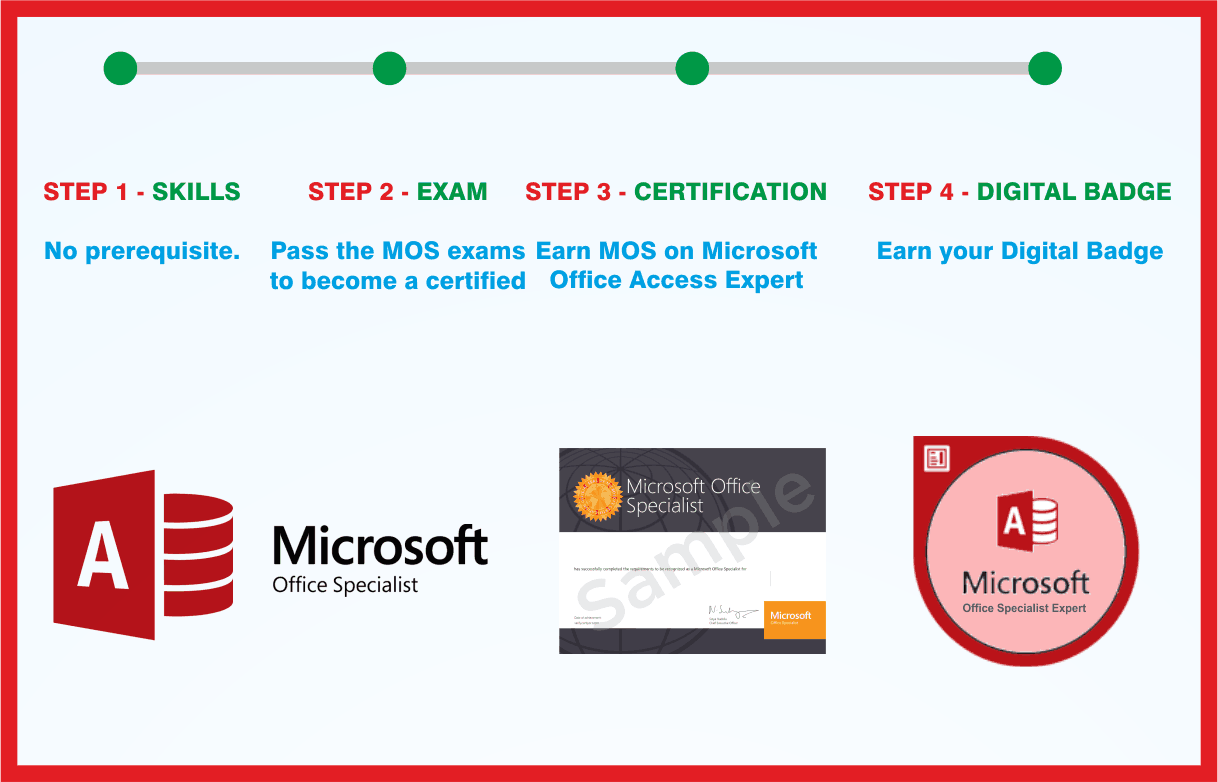
    Pass the exam and get the certified certificate with your marksheet. Anyone can check it online with its QR code.

  8. Certified badge

    Your certified badge — add it to LinkedIn and share it anywhere; it opens its own verify page.
    Certified badge — Microsoft Office Specialist (MOS) Access Associate
    Certified badge
    Course
    Microsoft Office Specialist (MOS) Access Associate
    Issued by
    CADD Training Cetre
    Training
    Classroom or live online
    How to earn
    Pass the certification exam
    You also get
    Certified certificate + marksheet
    With your name and year · its own verify link · “Add to profile” on LinkedIn
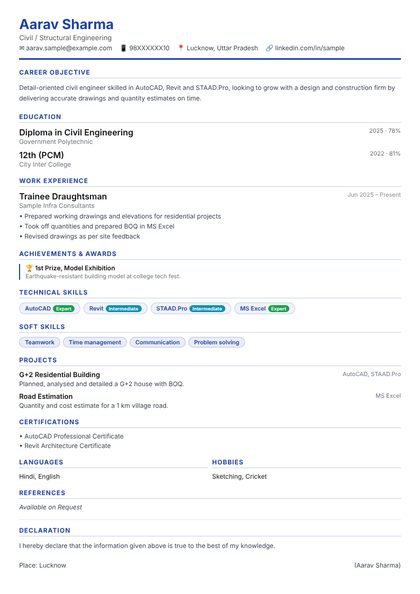
  9. Make your CV & apply for jobs

    Make your CV in your student panel (Career → My CV) — your course, certificates and projects are added for you. Send it as a link with a preview picture, and apply to jobs and Hire Me requests from companies.

About the MOS: Microsoft Office Access Associate course

Microsoft Access is the database program in Microsoft Office. Offices, schools, shops and small businesses use it to store records such as customers, stock, students or accounts in related tables, and then search them with queries and print them as forms and reports, without a full database server. It is a practical tool for data entry operators, office assistants and anyone who has outgrown Excel lists.

This 24-hour course covers the core Access skills tested at the beginner level of the Microsoft Office Specialist (MOS) programme. You plan a database, create tables with suitable field types and properties, set primary keys and relationships, write select queries with criteria and totals, build data-entry forms and design printable reports. Each concept is applied to one running project database. Classes are held in the classroom at CADD centres and as live online sessions.

After this course you can manage everyday office databases with confidence. Learners who want deeper skills continue with MOS Access Expert, which adds action queries, advanced forms and reports, and data import and export.

You will be able to

  • Explain tables, queries, forms and reports and how an Access database is organised
  • Create tables with the right data types, field properties and primary keys
  • Link tables with one-to-many relationships and referential integrity
  • Enter, sort, filter and find records quickly
  • Build select queries with criteria, sorting, calculated fields and totals
  • Create forms for data entry and reports for printing using the wizards and Layout View

Who it is for

  • Office assistants, clerks and data entry operators who handle records
  • Small business owners who want to track customers, stock or sales
  • Students of commerce, BCA and computer courses learning databases
  • Excel users ready to move to a proper relational database

What you need

  • Basic computer skills and some familiarity with Microsoft Office
  • Microsoft Access installed on a Windows PC for practice (Access does not run on macOS)
  • A Windows PC or laptop with at least 4 GB RAM and a stable internet connection for live online classes

Courses that include MOS: Microsoft Office Access Associate

Microsoft Office Specialist (MOS) Access AssociateMicrosoft Office Specialist (MOS) · 24 Hours
Enquire →
Data Analyst (Excel, Power BI, Python) – Associate Career ProgramAssociate Career Program · 72 Hours · 3 software
Enquire →
Data Analyst (Excel, Power BI, Python) – Professional Career ProgramProfessional Career Program · 192 Hours · 5 software
Enquire →
Python Developer – Professional Career ProgramProfessional Career Program · 232 Hours · 6 software
Enquire →
Microsoft Office Specialist Master in Microsoft Office 2016Microsoft Office Specialist (MOS) · 192 Hours · 8 software
Enquire →

MOS: Microsoft Office Access Associate Syllabus

6 chapters · 210 topics
01 Exploring the Access Environment 26 topics
  1. An Introduction to Databases
  2. Spreadsheet Databases
  3. Relational Database Management Systems (RDBMS)
  4. What is Access?
  5. Access Database Files
  6. Database Objects
  7. Access Web App Databases and Desktop Databases
  8. Components of the Access User Interface
  9. The Ribbon
  10. The Navigation Pane
  11. Using the Quick Access Toolbar
  12. Starting Access and Working with Databases
  13. Creating New Databases
  14. Importing Objects into a Database
  15. Closing Databases
  16. Opening Databases
  17. Using the Navigation Pane
  18. Sorting and Filtering Objects
  19. Setting Navigation Options
  20. Copying Objects
  21. Renaming Objects
  22. Deleting Objects
  23. Saving and Exporting Options
  24. Saving a Database as a Template
  25. Exporting Data to Alternate Formats
  26. Setting Access Options
02 Building Tables 39 topics
  1. Table Basics ..
  2. Table Structure
  3. Data Types
  4. Primary Keys
  5. Defining Tables in Access
  6. Modifying Table Fields
  7. Selecting Fields
  8. Using the Field Properties Pane
  9. About Table Properties
  10. Access Table Views
  11. Creating Tables in Datasheet View
  12. Reusing Design Elements
  13. Using Quick Start Fields
  14. Using Application Parts
  15. Importing Data
  16. Importing Tables from Other Databases
  17. Importing Data from Excel
  18. Appending Records to a Table
  19. Importing Data as a Linked Table
  20. Working in Datasheet View..
  21. Navigating a Datasheet
  22. Adding, Updating, and Deleting Records
  23. Manipulating a Datasheet
  24. Printing Datasheet Records
  25. Constraining Input..
  26. Validation Rules
  27. Input Masks
  28. Default Values
  29. Table Relationships and Keys..
  30. Foreign Keys
  31. Relationship Types
  32. Database Schema
  33. Creating Relationships in a Database
  34. Creating Lookup Fields
  35. Working with Related Data
  36. Error/Alert Messages..
  37. Messages Encountered in Design View
  38. Messages Encountered during Data Entry
  39. Messages Pertaining to Related Tables
03 Retrieving the Data You Want 46 topics
  1. Retrieving Data
  2. Finding Records
  3. Using Wildcards
  4. Finding and Replacing Data
  5. Sorting Records
  6. Filtering Records
  7. Filter by Selection
  8. Filter by Form
  9. Understanding Queries
  10. Running a Query (Datasheet View)
  11. Creating a Select Query in Design View
  12. Creating a Select Query with the Query Wizard
  13. Modifying Queries
  14. Adding and Removing Fields
  15. Sorting Query Fields
  16. Hiding Query Fields
  17. Formatting Query Fields
  18. Renaming Queries
  19. Creating Multiple-Table Queries
  20. Understanding Joins and
  21. Relationship
  22. Querying Related Tables
  23. Creating Joins in a Query
  24. Adding Query Criteria
  25. Arithmetic Operators
  26. Comparison Operators
  27. Concatenation Operators
  28. Special Operators
  29. Logical Operators
  30. Performing Calculations in Queries
  31. Understanding Expressions
  32. Adding Calculated Fields to a Query
  33. Using the Expression Builder
  34. Grouping and Summarizing Query Data
  35. Aggregate Functions
  36. Creating Parameter Queries
  37. Parameters and Data Types
  38. Adding Parameters
  39. Using Conditional Logic in a Query
  40. Creating Action Queries
  41. Creating Update Queries
  42. Creating Make Table Queries
  43. Creating Append Queries
  44. Creating Delete Queries
  45. Creating Crosstab Queries
  46. Using the Crosstab Query Wizard
04 Working with Forms 44 topics
  1. Why Use Forms?..
  2. Working with Records in a Form
  3. The Inside Scoop – Controls and
  4. Properties
  5. Form Views..
  6. Form View
  7. Layout View
  8. Design View
  9. Creating Forms Using Automated Form Tools
  10. Understanding Forms with Subforms
  11. Using the Form Wizard
  12. Creating Forms from Scratch
  13. The Field List Pane
  14. The Property Sheet
  15. The Record Source and Control Source Properties
  16. Modifying Forms
  17. Selecting Controls
  18. Removing Controls
  19. Resizing Controls
  20. Applying Formatting to Controls
  21. Working with Layouts..
  22. Moving Controls
  23. Using Table Functions
  24. Working with a Form in Design View
  25. Positioning Form Controls
  26. Creating Forms Using Application Parts
  27. Deleting Forms
  28. Adding Controls from the Ribbon
  29. Adding Controls in Layout View
  30. Adding Controls in Design View
  31. Aligning and Sizing Controls
  32. Adding a Subform Control
  33. Manually Creating and Linking a Subform
  34. Making Forms User-Friendly..
  35. Using Lookup Fields on Forms
  36. Changing the Tab Order
  37. Creating Control Tips and Hot Keys
  38. Validating Data Entry in Forms
  39. Applying Formatting and Design Options
  40. Working with Headers and Footers
  41. Working with Fonts, Backgrounds, and Images
  42. Working with Themes
  43. Formatting Forms for Printing
  44. Navigation Forms
05 Designing Reports 43 topics
  1. What is a Report?..
  2. Report Section
  3. Report Layouts
  4. Controls and properties
  5. Report Views..
  6. Report View
  7. Print Preview
  8. Layout View
  9. Design View
  10. Creating Reports..
  11. Using the Report Tool
  12. Creating a Report Using the
  13. Report Wizard
  14. Deleting Reports
  15. Creating Reports from Scratch
  16. The Field List Pane
  17. The Property Sheet
  18. The Record Source and Control Source Properties
  19. Working with Reports
  20. Selecting Controls
  21. Resizing Controls
  22. Control Report Positioning
  23. Applying Formatting to Report Elements
  24. Working in Layout View
  25. Working in Design View
  26. Adding Controls from the Ribbon
  27. Adding Controls from the Ribbon in Layout View
  28. Adding Controls from the Ribbon in Design View
  29. Working with Subform/Subreport Controls
  30. Adding Calculations to Reports
  31. Grouping and Sorting Data in Reports
  32. Adding Grouping Levels with the Shortcut Menu
  33. Using the Group, Sort and Total Pane
  34. Formatting and Previewing Reports
  35. Previewing Reports
  36. Working with Page Size, Orientation and Report Width Margins
  37. Formatting Reports into Multiple Columns
  38. Report Headers and Footers
  39. Adding Images to Reports
  40. Working with Colors
  41. Applying a Theme Printing Reports
  42. Sorting and Filtering Printed Output
  43. Report Output Options
06 Protecting, Maintaining, and Managing Databases 12 topics
  1. Protecting Database Files..
  2. Open Modes for Databases
  3. Encrypting and Password protecting a Database
  4. Maintaining Database Files
  5. Backing Up a Database
  6. Recovering Data from a Backup
  7. Compacting and Repairing
  8. Managing Databases
  9. Setting Startup Options
  10. Renaming Database Objects
  11. Object Dependencies and Deleting Database Objects
  12. Working with Split Databases

Ratings & reviews

Students rate the course after they finish it — their ratings appear here.

MOS: Microsoft Office Access Associate course — FAQ

What is MS Access used for?

Microsoft Access is used to build small and medium databases: storing related records in tables, finding information with queries, entering data through forms and printing reports. It is common for inventory, student, customer and office record systems.

Is Microsoft Access hard to learn?

No. If you are comfortable with Excel or Word you can learn Access step by step. The course starts with simple tables and builds up to relationships, queries, forms and reports on one project.

How long is the MS Access beginner course?

This course is 24 hours long. The counsellor will share timings for classroom batches and live online classes.

Can I learn Microsoft Access online?

Yes. You can attend live online classes or classroom sessions at a CADD centre. For online study you need Access installed on a Windows computer, because Access is not available for Mac.

Will I get a certificate for the Access course?

Yes. After the Access beginner course you get a CADD Training Centre certificate showing the course you completed; it can be confirmed online from its QR code or verification code.

Is there a MOS Associate exam for Access?

Microsoft's current MOS track lists Access at the Expert level. This course covers the beginner skills that come before it; the counsellor can advise which Microsoft exam, if any, fits your goal.

What jobs use Microsoft Access skills?

Access skills help in roles such as data entry operator, MIS executive, office assistant, back-office executive and inventory or records coordinator in small and medium organisations.

More questions? Ask our counsellor or read the general FAQ.
MOS: Microsoft Office Access Associate24 Hours
Enquire now